
The finding to use
Buy for a documented working setup, not the number of ports in the photo.
Sources checked 17 November 2026. Follow the reasoning, then use the worksheet for your own situation.
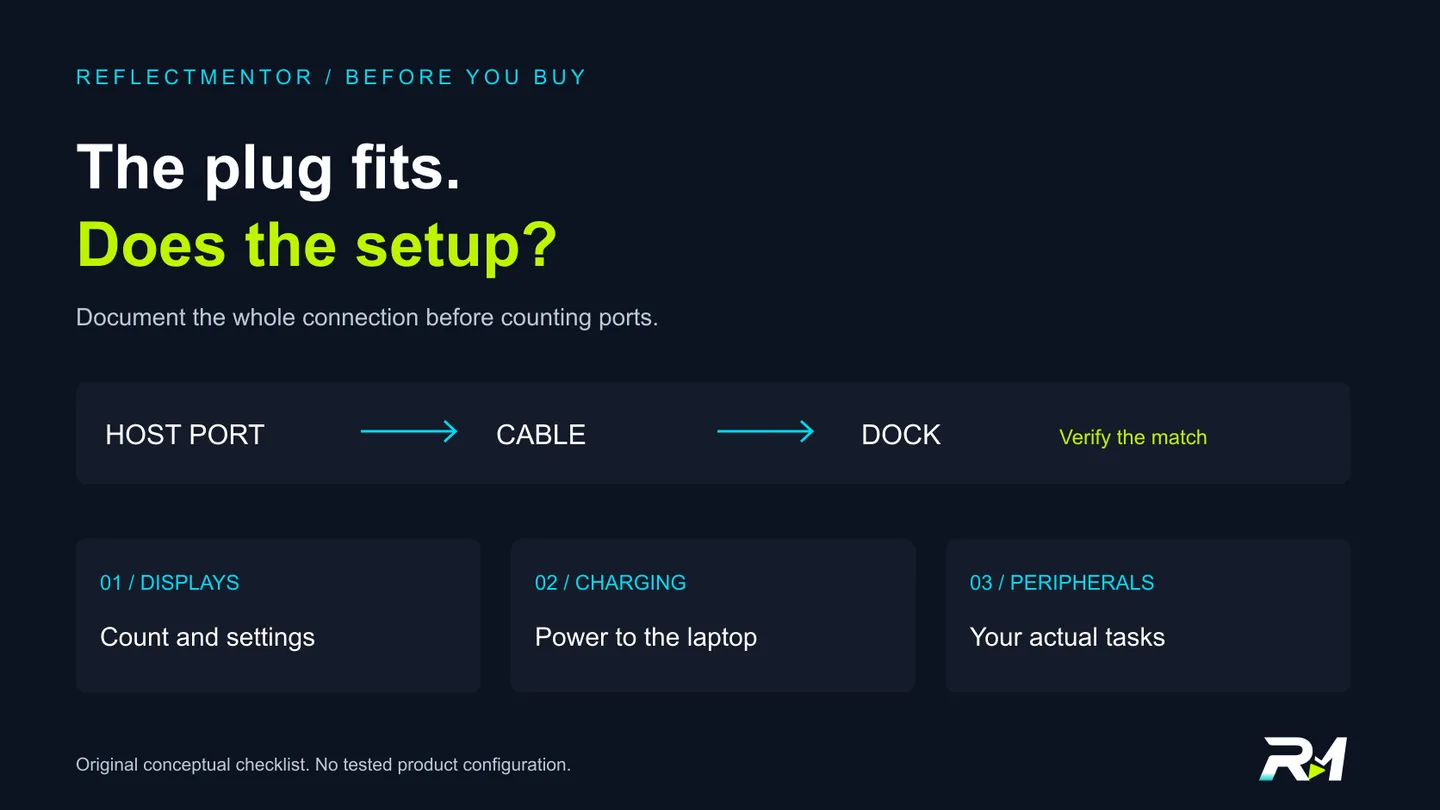
01 / Before You Buy
Start with the laptop, not the accessory listing
Imagine ordering a dock for a monitor, keyboard and charging cable. The connector fits your laptop, the keyboard works, but the screen remains blank. Before blaming the monitor, ask what the laptop's chosen USB-C port actually supports.
A matching connector is only the first check.
VESA explains that DisplayPort over USB-C uses DisplayPort Alt Mode. Its FAQ says a display receives no video through that path when the source port lacks support. [1] That statement concerns this video connection method; it is not a claim that every type of USB display solution uses the same method.
Find the exact laptop model, operating system and port diagram in the manufacturer's documentation. Mark the physical port you plan to use. Save the link. A product-family name alone leaves too much room for assumptions.
02 / Before You Buy
Write a complete display requirement
One external monitor and two independent workspaces are different requests. Record how many screens you need, whether they should mirror or extend the desktop, and each screen's resolution and refresh rate. A dock photograph with two HDMI sockets does not answer that whole brief.
For example, write two extended screens at your chosen settings, with the laptop display also in use if required. Those are requirements to verify, not a configuration we have tested. Ask for the dock manufacturer's supported-display table for the exact laptop and operating system.
Check the entire path: laptop output, dock input, dock video output, cable and monitor input. VESA describes adapters that convert DisplayPort over USB-C to display connections such as HDMI. [1] An HDMI socket on a dock therefore does not, by itself, tell you how the laptop supplies its video.
Keep unsupported and not documented in separate columns.
If the table does not cover your arrangement, seek written clarification or choose a better-documented candidate. Do not treat a headline resolution as proof of every multi-screen combination.
03 / Before You Buy
Treat charging as a separate decision
Decide whether one-cable charging is essential. It may be acceptable for your desk to keep the laptop's existing charger connected separately. That choice belongs in the brief before you compare accessories.
Microsoft's USB-C guidance lists incompatible or insufficient chargers, unsuitable charging cables, the wrong port and a charger connected through a hub or dock among possible charging problems. [2] A successful video connection is not a charging test.
For each candidate, record the documented power delivered to the host, the required power adapter and the laptop manufacturer's charging requirements. Ask whether the advertised wattage describes the adapter input or the output available to the laptop. Leave an unexplained number unverified.
Also list what comes in the box. A dock-only price and a complete setup price are different comparisons. Add any required adapter and cables using current quotes in your own worksheet; this guide has not verified an Indian offer, price or stock position.
04 / Before You Buy
Check the cable and the peripherals you actually use
Microsoft advises matching the PC, cable and attached device's supported USB-C features. Its USB4 troubleshooting also identifies unsupported ports or cables as possible limits on functionality. [2] Do not assume that any spare cable with the right-shaped plug is the intended replacement.
Start with the dock's documented host cable and connection instructions. If the cable is replaceable, record the required specification and length before ordering an alternative. Photographing the label or saving the manual is more useful than remembering that the cable looked substantial.
Now make a small inventory: keyboard, pointing device, storage drive, headset, webcam and network connection, if needed. Mark which devices must operate at the same time. For each, list the connector and the job it must perform rather than buying spare sockets without a reason.
A useful hypothetical test is a normal meeting with the usual peripherals attached. Define what you would inspect before running it: sound, camera, display arrangement and any required file access. We have not run that exercise, and it would not establish maximum throughput or long-term reliability.
05 / Before You Buy
Read the software and return conditions before checkout
Find the exact dock model's setup guide. Does it require a driver, application, permission or firmware procedure on your operating system? If you use a managed work laptop, confirm what your administrator permits before relying on a setup that needs installation.
Keep the response tied to the product you are buying.
A seller's answer about a similar dock is not a compatibility record for a different model. Save the relevant support link and any written clarification with the date you checked it.
For an Indian purchase, inspect the actual seller's invoice, warranty route and return or replacement conditions. Do not assume that an uncertain compatibility result guarantees a return. No merchant's current terms have been checked for this guide.
If you already own the equipment, follow its documented setup and use manufacturer support for troubleshooting. Record the exact symptom and configuration. Avoid turning an unexplained failure into a claim that all docks or all laptops of that brand are defective.
06 / Before You Buy
Use three verdicts before choosing a dock
Compare candidates against the same brief: documented fit, documented mismatch, or not established. The third answer is useful. It stops a missing specification from becoming a recommendation.
Our buying judgment is to prefer a clearly documented match over an impressive port count. Keep the initial shortlist small, then fill the worksheet with evidence for the screens, power arrangement and peripherals that matter to you.
Before buying, finish one sentence: this exact laptop, using this port and cable, is documented to support the setup I need.
USB-C dock compatibility worksheet
| Requirement | Evidence to save | Verdict / unknown |
|---|---|---|
| Laptop and host port | Exact model, OS, physical port and manufacturer feature list | Documented fit / mismatch / not established |
| Displays | Count, extend or mirror, resolution, refresh rate and supported configuration table | Include laptop display if required |
| Charging | Host output, required adapter and laptop charging requirements | Keep input and host-output ratings separate |
| Host cable | Supplied cable or documented replacement specification and length | Right plug alone does not settle feature support |
| Peripherals | Devices and tasks that must work simultaneously | Test only against defined needs; no throughput claim inferred |
| Software and purchase | Setup guide, permissions, dated seller terms and full required kit | No assumed compatibility or return entitlement |
Sources & revision note
Primary sources checked 2026-11-17. Practical frameworks are editorial guidance; illustrative examples are not measured results.
- VESA DisplayPort FAQ: DisplayPort over USB-C, Alt Mode and display adapters
- Microsoft Support: Fix USB-C problems in Windows — display, cable and charging compatibility
Revision 1 · 2026-11-17: First publication: host-port, display, power and peripheral checklist with a comparison worksheet and original diagram.
Keep the useful part
Take the decision back to your work.
Buy for a documented working setup, not the number of ports in the photo.
This preference is private to this browser, not a public vote count.