
The finding to use
Check the required workload and upgrade path before choosing the larger number.
Sources checked 14 November 2026. Follow the reasoning, then use the worksheet for your own situation.
01 / Before You Buy
The same processor does not make two laptops equivalent
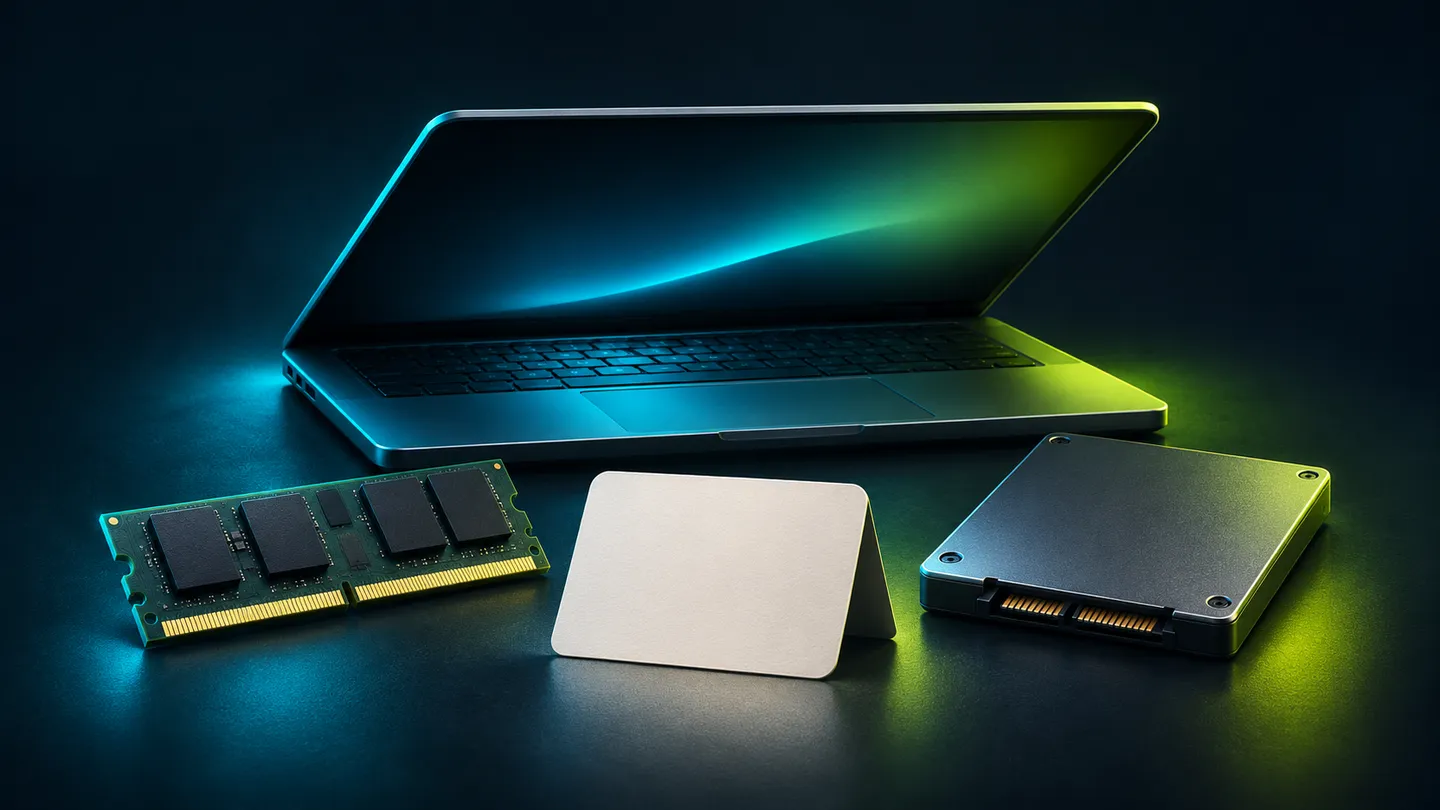
You have narrowed the shortlist to two configurations. One gives you more memory; the other gives you more storage. Both listings describe themselves as suitable for students, work and creators. Neither description tells you which compromise you will notice six months from now.
Start with three questions: what must run, what files must stay on the machine, and what can you change later? Answering them is more useful than treating RAM and SSD capacity as competing scores.
RAM is working memory for active tasks. Storage keeps your files and installed software. Kingston’s explanation distinguishes these roles. [1] Extra storage does not simply become extra working memory, and more RAM does not create space for a growing footage archive.
The right purchase addresses your constraint. It does not have to win the specification table.
02 / Before You Buy
Write down an ordinary working day
Use actual applications and habits. A student might keep lecture notes, a browser and a video call open together. A creator might work with editing software, source footage and a cache. These are example workloads, not tested configurations or universal memory recommendations.
List the software you must use, the versions and the work you do in them. Add your normal multitasking. Then inventory the files that need to be local: project media, photographs, downloads, games or development environments. Mark what can live elsewhere without disrupting your work.
For editing, look at the application’s own requirements. Adobe’s Premiere documentation distinguishes memory recommendations for HD and 4K work and addresses fast storage for installation and cache. [2] That is more relevant to an editing decision than an operating-system minimum alone.
If your current computer feels slow, observe when it happens. Switching between applications, opening a large file and exporting a video are different situations. Do not assume that buying the largest SSD, or the most RAM, will fix an unidentified problem.
03 / Before You Buy
Check the exact model’s upgrade path
Look beyond the family name on the retail listing. Find the exact SKU and the manufacturer’s specification or service documentation. Check whether memory is soldered, whether slots exist, what capacities are supported and how storage expansion works.
There is a concrete reason to do this. Lenovo’s IdeaPad Pro 5 16AKP10 specification sheet lists soldered memory without memory slots, alongside two M.2 storage slots. [3] That illustrates an unequal upgrade path. It is not a recommendation of that laptop or a statement about Indian availability.
If you cannot replace the memory but can change storage later, the initial memory choice deserves particular attention. Still check the requirements first. Fixed memory is a reason to choose carefully, not a reason to buy an expensive configuration you do not need.
Ask about compatible parts, installation, service terms and warranty before budgeting an upgrade. “Expandable” is incomplete information until you know what part fits, who will install it and the full cost.
04 / Before You Buy
Put both quotes through the same scorecard
Write each SKU at the top of a separate column. Use the same workload and ownership questions for both. If a seller cannot resolve an important specification, leave it marked unknown rather than quietly assuming the better answer.
Workload fit comes first. Does the configuration meet your essential applications’ documented needs? What remains uncertain about your heavier tasks? A published specification can establish capacity; it does not substitute for a relevant performance test.
Next, compare reversibility. Which shortfall can you fix later, and which would mean replacing the whole machine? Include the cost of a necessary upgrade in the cheaper configuration’s quote. The lower sticker price may not be the lower cost of getting a usable setup.
For Indian offers, record the payable checkout price in rupees, the seller, taxes shown, warranty, required accessories and the date. Do not compare a foreign launch price with a local checkout total, or count a conditional bank offer you cannot use.
This is a buying worksheet, not a numerical benchmark. We have not physically tested your shortlist. There is no honest score to assign to performance we have not measured.
05 / Before You Buy
Keep the rest of the laptop in the decision
Memory and storage are only part of ownership. A poor display, an uncomfortable keyboard, inadequate ports or difficult service can matter more to your day than an extra capacity tier. Check those features separately instead of letting one specification settle the purchase.
Imagine two machines that both meet your application requirements. If one has a display you can comfortably read for long writing sessions, that could be a better use of the budget than storage you will leave empty. For a different reader with large local projects, the priorities could reverse.
Return to the original three questions before paying. Can this exact configuration do the essential work? Do the files fit? Can you explain the upgrade limits and total cost?
If an answer is missing, resolve it while you can still change the shortlist. It is cheaper to ask an awkward question before checkout than to discover a fixed limit after your return options have ended.
Asli Sach laptop scorecard
| Question | Configuration A | Configuration B |
|---|---|---|
| Exact SKU and payable price | Fill from a dated local quote | Use the same quote conditions |
| Essential workload | Application requirements and multitasking | Compare the same workload |
| Memory upgrade path | Soldered, slots, supported capacity, source | Verify for this exact model |
| Storage and full cost | Capacity, expansion, parts and service | Include necessary upgrades |
| Other trade-offs | Display, keyboard, ports and service | Record fit and avoid cases |
Sources & revision note
Primary sources checked 2026-11-14. Practical frameworks are editorial guidance; illustrative examples are not measured results.
- Kingston: memory versus storage
- Adobe Premiere technical requirements
- Lenovo PSREF: IdeaPad Pro 5 16AKP10, memory and storage
Revision 2 · 2026-11-14: Rewritten with clearer examples, a practical worksheet and a stronger decision checklist.
Keep the useful part
Take the decision back to your work.
Check the required workload and upgrade path before choosing the larger number.
This preference is private to this browser, not a public vote count.